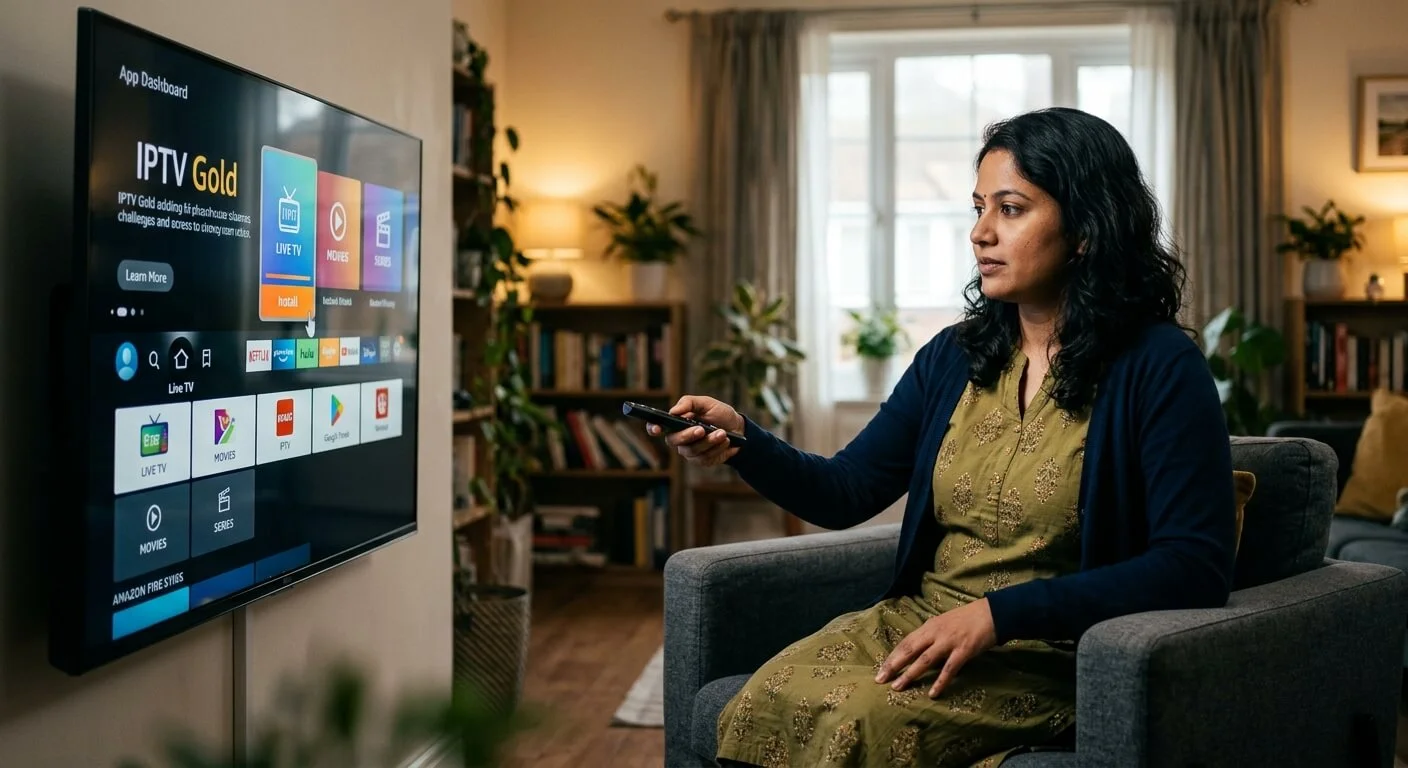
How to Access and Set Up IPTV Gold on Amazon Firestick
Accessing IPTV Gold on an Amazon Firestick transforms your home streaming experience by consolidating live channels, movies, and sports into a unified interface. Because dedicated IPTV apps like IPTV Gold (or companion players like IPTV Smarters / XCIPTV) are not hosted directly on the official Amazon Appstore, the installation process requires a quick side-loading setup using the popular Downloader app.
Follow this complete step-by-step guide to get IPTV Gold up and running smoothly.
Step 1: Prepare Your Firestick for Sideloading
Before installing third-party streaming applications, you must adjust your Firestick’s permissions to allow installations from unknown sources.
-
Go to the Home Screen on your Firestick and open Settings (gear icon).
-
Select My Fire TV.
-
Click on Developer Options.
Note: If Developer Options is hidden, go to About, highlight Fire TV Stick, and click your remote’s middle button 7 times until a message says “You are now a developer.”
-
Turn ON “Install Unknown Apps” or enable Apps from Unknown Sources.
Step 2: Install the Downloader App
The Downloader utility acts as a web browser and file manager on your Firestick, making side-loading straightforward.
-
Navigate back to the Home Screen and select Search (Find > Search).
-
Type Downloader using the on-screen keyboard.
-
Select the orange Downloader icon from the search results and click Get or Download.
-
Once installed, launch Downloader and grant permission for it to access photos and files when prompted.
Step 3: Download and Install the IPTV Gold APK
With Downloader prepared, you can pull the official installation file (APK) directly to your device.
-
Open the Downloader app.
-
Click the address bar on the Home tab.
-
Enter the official IPTV Gold Downloader Code or direct URL provided by your service provider (or use a general media player code such as
286215for IPTV Smarters / XCIPTV if using your service as an M3U or Xtream Codes login). -
Click Go and wait for the APK file to download.
-
Once the download finishes, a popup menu will appear automatically. Click Install.
-
When installation completes, choose Done, then select Delete to clear the setup file and save device memory.
Step 4: Configure IPTV Gold and Log In
-
Hold the Home button on your remote and select Apps to open your installed software list.
-
Scroll to the bottom, locate IPTV Gold (or your selected player app), and click to launch it.
-
Select your login format as instructed by your subscription email:
-
Xtream Codes API: Enter the Username, Password, and Server URL.
-
M3U Playlist URL: Enter the full web link provided in your subscription email.
-
-
Click Add User or Login and allow a moment for the channels, VOD content, and EPG (electronic program guide) to sync.
Key Troubleshooting & Optimization Tips
-
Use a VPN for Stability: Internet Service Providers often throttle live streaming traffic during peak hours or sporting events. A reputable VPN hides your traffic and stabilizes high-bitrate feeds.
-
Clear Cache Regularly: If channels freeze, go to Settings > Applications > Manage Installed Applications > IPTV Gold > Clear Cache to free up operating memory.
-
Ensure High-Speed Wi-Fi: Streaming high-definition or 4K live television requires at least 25 Mbps bandwidth for uninterrupted playback.
Leave a Reply